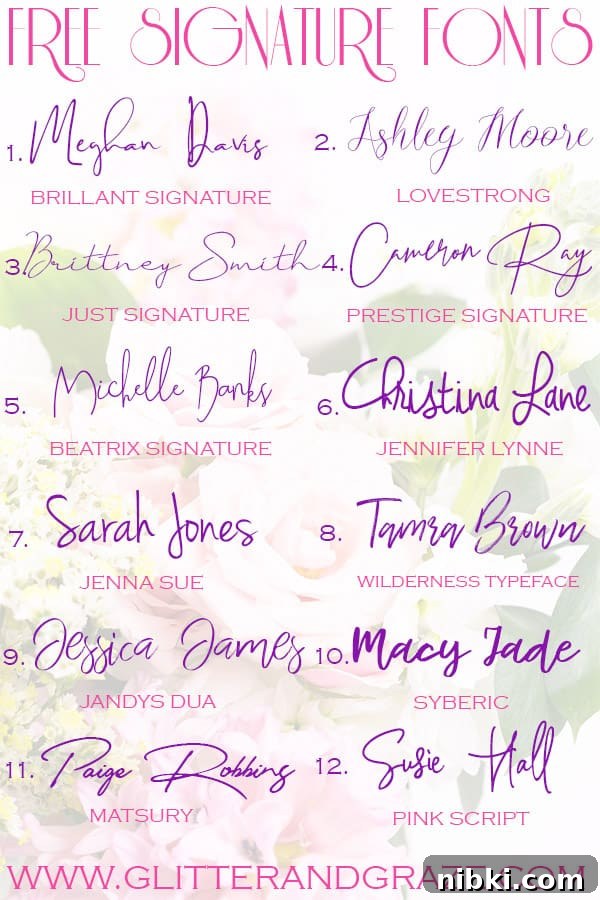
Here is a collection of free signature fonts you can download on your computer and use in Cricut Design Space.
If you haven’t installed free fonts and used them in Design Space yet, you’re missing a simple way to expand your creative toolkit. Free signature-style fonts give projects an elegant, handwritten look without the cost of commercial fonts. Below you’ll find practical tips for downloading, installing, and using these fonts effectively in Cricut Design Space, plus a curated list of free signature fonts to try.
How to install and activate fonts for Cricut Design Space
Most free fonts come as TTF or OTF files, which are compatible with both Windows and macOS. After downloading a font file, double-click it and choose “Install” (Windows) or “Install Font” (macOS). Once installed, it’s essential to completely close Cricut Design Space and then reopen it so the newly installed fonts appear in the font dropdown. If Design Space is left open during installation, the font list will not update and the new font will not be available.
Testing pens, markers, and size for best results
A common question is whether a signature font will draw without an inner outline when using Cricut’s writing tools. The result depends on the font’s stroke characteristics, the size of the text, and the point size of the pen or marker you choose. To avoid unwanted outlines, do a quick test: type a sample word at the final size you plan to use, select the pen or marker you’ll use, and run a test on scrap material. Testing helps you confirm whether the font’s thin strokes will appear solid or will show a double line effect when written.
Preparing script fonts for cutting
Signature fonts can be cut as well as written, but many script fonts do not automatically join letters in Design Space. To create a single connected word for cutting, reduce the letter spacing using the letter spacing control until the characters overlap slightly. For tighter or more customized connections, type a few letters, convert them to a separate text box, and move them manually to achieve natural joins. Once letters are positioned correctly, use the Weld tool to combine them into one continuous cut path. Welding is essential when you want a single connected word rather than separate cut letters.
Additional best practices
– Keep a small test file for each font so you can quickly check pen compatibility and cut settings before working on a final project.
– If a font appears too thin for your chosen pen, try increasing the font size or use a pen with a finer tip to preserve detail.
– When combining writing and cutting in the same design, use Attach to lock the drawn and cut elements together so they maintain their relative positions during the cut. Welding is only needed for the cut paths you want merged.
– For layered or shadowed text effects, duplicate the text, offset or resize the duplicate, and change the order to create depth without altering the original font shape.
Below is a concise list of free signature-style fonts to explore. Each of these works well for creating a handwritten, elegant look in both written and cut projects when adjusted appropriately in Design Space.
- Brillant Signature
- Lovestrong
- Just Signature
- Prestige Signature
- Beatrix Signature
- Jennifer Lynne
- Jenna Sue
- Wilderness Typeface
- Jandys Dua
- Syberic
- Matsury
- Pink Script
Enjoy experimenting with these signature fonts. With a few simple adjustments—testing pen size, adjusting letter spacing, and using welding where needed—you can achieve beautiful handwritten and cut designs in Cricut Design Space without spending on premium fonts.